
The User Accounts Overview is the central page within the B2B Booking Portal where operators can view, filter, and manage user accounts. It exists to give portal administrators a clear, consolidated view of all client accounts so that they can take action quickly and consistently.
It is also crucial to understand PayDocker’s involvement in B-Portal.
This article covers the following topics:
2.1 Accessing the User Accounts Overview page
1. Pre-Requisites
Before using the User Accounts Overview page, the following areas of the platform must be configured.
| Area | Why It Matters |
| Imported Clients | The User Accounts Overview page includes an Imported Clients tab. This tab is handled separately and must be configured before imported client records appear in the overview. |
| Account must be created and live | Each user account passes through a defined set of statuses when it is first created. This lifecycle must be established before accounts are visible and actionable on the overview page. |
2. User Accounts Overview
2.1 Accessing the User Accounts Overview page
- Login to your Bakuun account and navigate to B-Portal in Bakuun Store
- Navigate to the specific Portal and click on Settings on the top bar
- Then, click Accounts on the left hand menu
2.2 Page Layout Overview
The User Accounts Overview page is made up of eight distinct elements, each serving a specific role in helping you manage user accounts.
2.2.1 All Accounts
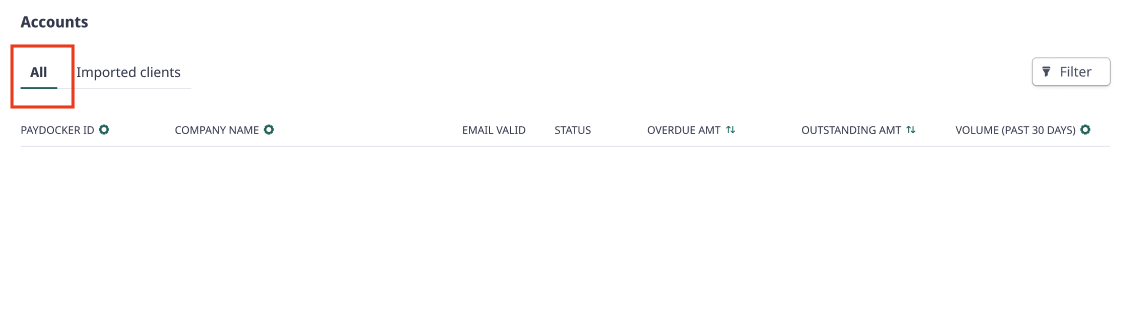
All accounts tab toggle that switches the page view to display all user accounts, regardless of how they were created or their current status. This is the default view when you first open the User Accounts Overview and gives you the broadest possible picture of your user base.
Within each account line lies account details which you can use as a single, consolidated view of a client’s financial standing, account configuration, and access settings without needing to navigate across multiple areas of the platform.
2.2.2 Test Buyer Account
Each B-Engine portal now includes an automatically created Test Buyer account.
This account allows portal admins to test the live booking flow without creating a buyer account manually.
The Test Buyer account appears under:
Settings, User Settings, Accounts
The account name will show as Test Buyer.
The Test Buyer email follows the format [Site Name]@bakuun.com. Portal admins do not have access to this inbox.
Existing B-Engine portals without a Test Buyer are updated automatically.
How to test the booking flow using the Test Buyer account
- Open your B-Engine portal
- Go to the portal editor
- Click Login as test buyer
- The live site login page will open in a new tab
- The email and password fields will be prefilled
- Click Log in
- Continue testing the portal booking flow as the Test Buyer
Expected behaviour
When using the Test Buyer account:
- The login page opens with the credentials prefilled
- 2FA is not shown for the Test Buyer account
- PayDocker balances are masked
- A warning banner is shown on the PayDocker page to confirm that you are logged in as a test buyer
- The portal homepage, search, property details, booking flow, and company details pages work the same way as they do for a real buyer
Important notes
- The Test Buyer account is for testing only.
- Portal admins do not have access to the Test Buyer email inbox.
- The Test Buyer account should not be used as a real buyer account.
- When using the Test Buyer, PayDocker balances are masked. In the Test Buyer account detail view, financial fields such as Outstanding balance, Overdue, Total earnings, Change currency and Open in PayDocker are hidden.
- If the Test Buyer login page is refreshed, the pre-filled credentials are cleared. Launch Login as test buyer again to generate a new logi
2.2.3 Tab Toggle: Imported Clients
Imported Clients tab toggle switches the page view to display only accounts that were imported from an external source, rather than created directly within the portal. This tab is important because imported clients may have a different onboarding status or require additional review before they are fully active.
This tab is managed separately from the rest of the User Accounts Overview. It will only display records once the Imported Clients dependency has been configured.
2.2.4 Column Toggle: Sort Order
Up-Down arrows control the sort order of the account list. Sorting the list helps you identify patterns, prioritise actions, and find groups of accounts quickly.
This toggle works in conjunction with the column visibility settings. A column must be visible in order for its sort order to be meaningful in the displayed view.
2.2.5 Filter
The filter function allows you to narrow down the account list by applying one or more filter conditions. The filter panel is distinct from the search field: search is best for locating a specific known account, while filters are best for finding groups of accounts that share a common attribute.
When filters are active, a count of the number of applied filters is displayed so you can see at a glance how narrowed-down your current view is. Removing all filters returns the list to its unfiltered state for the active tab.
3. Troubleshooting
| Issue | Likely Cause | Resolution |
| The account list is empty even though accounts exist in the system. | One or more filters in the filter panel are active and excluding all results, or the search field contains a term that matches no records. |
1. Open the filter panel and remove all active filters. 2. Clear the search field. 3. If the list remains empty, switch to the All Accounts tab to confirm accounts exist under that view. |
| Account statuses are not displayed or show unexpected values in the table. | The initial account status lifecycle has not been fully implemented. |
1. Confirm that the status lifecycle is in place. 2. Check whether the status column is toggled on. 3. If the column is visible but values are still incorrect, please reach out to support@bakuun.com |
| A column I expect to see in the account table is not visible. | The column has been hidden using the column visibility toggle. |
1. Click the Gear Icon to open the column visibility dropdown. 2. Locate the missing column and enable it. 3. The table will update immediately to show the column. |
| The Add User button does not open a new account creation workflow. | The button may be disabled due to a permissions issue, or the account creation workflow has not been configured. |
1. Confirm that your user role has permission to create accounts. 2. Check whether the button is visually disabled (greyed out). 4. If the issue persists, contact support@bakuun.com |