
The General Site Settings allows the portal admins can manage the core identity and informational properties of your portal. It exists as a single, accessible location to update how your site presents itself throughout your journey with Bakuun.
This article covers the following topics:
2. How To Configure Your Settings
2.1 How to get to General Site Settings Page
1. Pre-Requisites
The following areas of the platform must be in place before you can use the General Site Settings page.
| Area | Why It Matters |
|---|---|
| Portal creation / Setup Wizard | The portal must already exist. The General Settings page is only accessible for an active portal. |
| Portal Dashboard access | The General page is reached via the Portal Dashboard Side Menu. You must have admin-level access to the dashboard to navigate here. |
| Portal not in Delete Pending or Deleted state | If the portal has been flagged for deletion or has already been deleted, the General Settings page is inaccessible. |
2. How To Configure Your Settings
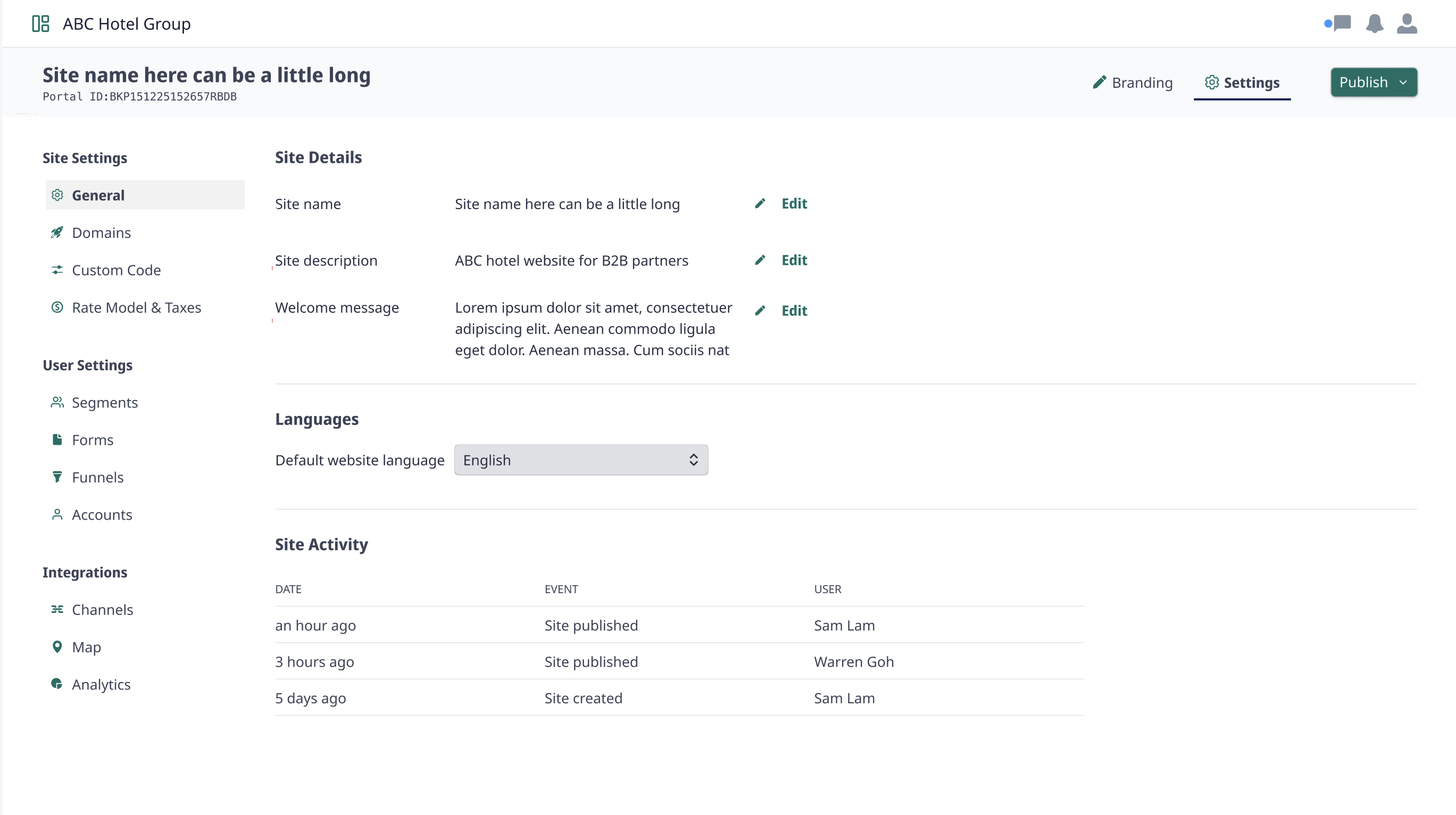
2.1 How to get to General Site Settings Page
- Navigate to B-Portal Portal Listing
- Select Customise
- Select Settings
- Select General
2.2 Portal ID
The Portal ID is a system-generated identifier assigned to your portal at the time of creation. It is always read-only. This ID is used in all portal URLs and is important for support and troubleshooting.
2.3 Edit Site Details
Only Your Site Name, and Site Description can be easily updated at any point of time. The rest of the settings cannot be changed.
2.3.1 How to Edit a Field
- Locate the field you want to edit on the General Settings page.
- Click the Edit button. The field will become editable.
- Enter your new value, following the validation rules for that field.
- Click Save. The Edit button changes to a Save button once the field is active.
- You will see a success message: "Settings saved successfully". The page will reflect your updated value immediately.
Important: Changes are saved only when you click Save. There is no automatic save or draft state.
Each editable field has its own validation rules. If your input does not meet these rules, you cannot save any input.
| Field | Max Characters | Allowed Characters |
|---|---|---|
| Site Name | 50 | Alphanumeric and hyphens only. No special characters. |
| Site Description | 120 | Alphanumeric and hyphens only. No special characters. |
2.4 Website Language
The Website Language section displays the default language for your portal. In the current version of B-Portal, this is set to English and cannot be changed.
2.5 Site Activity Log
The Site Activity log provides a basic audit trail of events for your portal. It is read-only and gives you a quick way to see when key updates occurred and who triggered them.
2.6 Portal Access Restrictions
The General Settings page will not be accessible if your portal has been Deleted or is in a Delete Pending state.
Important: If you believe your portal has been placed into a Delete Pending state in error, contact your platform administrator immediately. Once a portal is fully deleted, the action cannot be undone through the General Settings page.
3. Troubleshooting
| Issue | Likely Cause | Resolution |
|---|---|---|
| The General Settings page will not load / show a 404 or access error. | The Portal ID in the URL is incorrect or missing, or the portal is in a Delete Pending / Deleted state. |
1. Verify the Portal ID in your URL matches the format BKP<Timestamp><RandomSuffix>. 2. Confirm the portal is not in a Delete Pending or Deleted state by checking with your platform administrator. 3. Navigate to the Portal Dashboard and access General Settings via the Side Menu instead of entering the URL directly. |
| The Save button does not respond / changes are not saved. | The input is not in the acceptable format |
1. Check for an inline validation error message displayed next to the field. 2. Review the validation rules and correct your input. 3. Ensure the field is not empty before clicking Save. |
| Edits disappeared after refreshing or navigating away. | The page was refreshed or a different page was visited before clicking Save. The system does not auto-save. |
1. Re-open the field using the Edit button. 2. Re-enter your changes. 3. Click Save before navigating away or refreshing. |