
Domain Settings is the area of your portal where you can customise the web addresses (domains) under which your portal is published and accessible to users. It exists so that portal admins can replace the default system-generated address with their own branded URL, giving your visitors a professional, on-brand experience.
In this article, we will cover the following topics:
3. Understanding different domains on your portal
3.2.2 Entri Configuration pop-up: Domain Input Field Rules
3.2.3 Root Domain and Subdomain Handling
3.3 Setting the Primary Domain
3.3.2 Switching Between Domains
3.4.1 Deleting a Domain with "Securing Your Domain" Status
3.4.2 Deleting a Domain with "Connected" Status
1. What is Entri?
Bakuun partners with Entri to support the seamless integration between your domain and B-Portal.
Entri is a secure, automated integration embedded in our platform that connects directly to your domain registrar (e.g., GoDaddy, Namecheap). Instead of requiring you to manually copy and paste complex A or CNAME records, Entri uses a secure OAuth login to automatically configure your DNS settings for you in seconds.
2. Pre-Requisites
Before working with Domain Settings, the following areas must be correctly configured. Issues in any of these areas will prevent your custom domain from connecting successfully.
| Area | Why It Matters |
| Portal Status (Active, not Delete Pending or Deleted) | The Domains page is only accessible when the portal is in an active state. If the portal is Delete Pending or Deleted, this page cannot be reached. |
| Portal roles | Only portal admins can manage domains. If you do not have the portal admin role, the controls on this page will not be available to you. |
| Domain Ownership |
You must own or control the domain you want to connect. During the connection flow, you will authorise the platform via Entri to create the required DNS records on your behalf. |
3. Understanding different domains on your portal
Every portal will come with 3 domain options:
- Auto-generated Preview Site
- Auto-generated Live Site
- Your customised domain
3.1 Auto-generated Domains
3.1.1 Preview Site
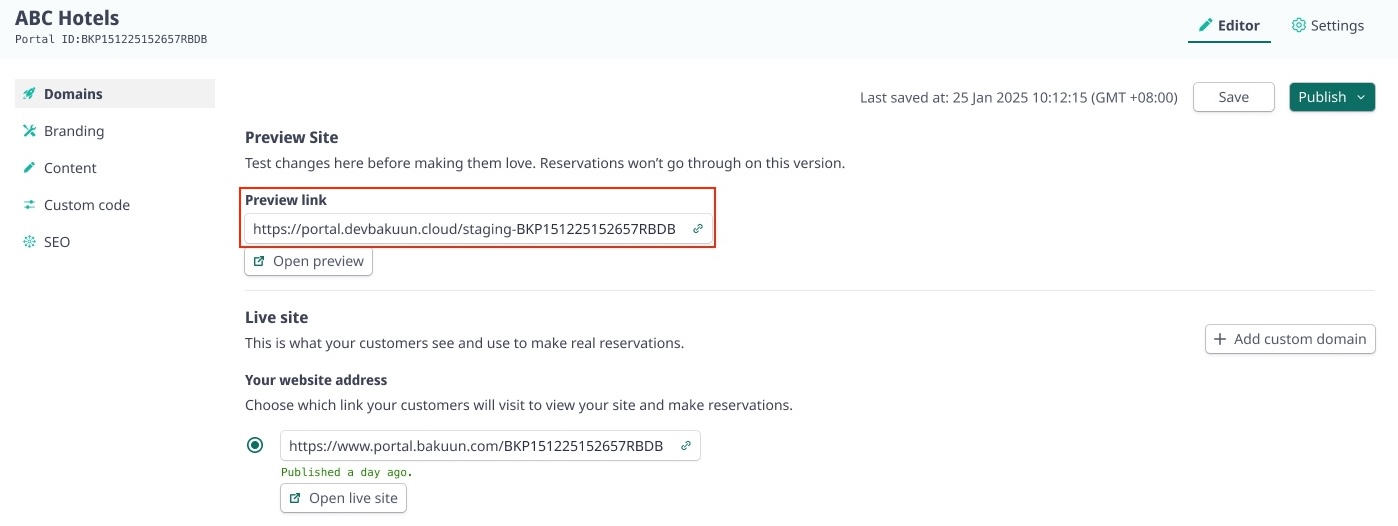
The Preview Site (Also known as Staging domain) is read-only. Changes made to this Live Site will not be visible to all your clients. This domain cannot be edited, replaced, or removed.
3.1.2 Live Site
The Live Site (Also known as Production domain) is your portal's default public-facing address. Changes made to this Live Site will be visible to all your clients. It is created and assigned as the Primary Domain by default, if there are no custom domain added.
Similarly, it cannot be deleted. This domain is active only when you publish your site.
3.2 Adding a Custom Domain
A custom domain lets you publish your portal under your own branded URL. Each portal supports one custom domain.
- Locate the Live site section on the Domains page and click Add custom domain
- The Entri configuration popup opens, where the user enters their domain and completes an OAuth authorization flow with their registrar. This step will be fully guided and you may be expected to provide the following details:
- Your domain name (Restrictions and guidelines will be explained in the next section)
- Your DNS Provider Login Credentials
- Entri automatically maps and provides the records. Configuration popup will close and you will be returned to the Domains page with a status of Securing your domain.
3.2.1 Configuring DNS Records
Securing your domain doesn't necessarily mean your domain has been successfully added. The system continues to monitor DNS propagation via an automatic background sync and provisions your SSL certificate.
Once DNS resolution and HTTPS availability are successfully verified, the status updates to Connected.
Background sync and verification happens independently following this schedule:
| Elapsed Time | Check Frequency |
| First 2 hours | Every 10 minutes |
| 2 hours to 48 hours | Every hour |
| 48 hours to 7 days | Daily |
Verification passes only when both of the following conditions are met:
-
DNS resolution: For a www subdomain, the domain must resolve via CNAME to portal.bakuun.com. For an apex domain, it must resolve via A record to the platform's allowlisted IP addresses.
- HTTPS availability: The domain must be reachable over HTTPS with a valid SSL certificate.
Important: After confirmation, the Add custom domain button will be disabled, as only one custom domain is permitted per portal.
3.2.2 Entri Configuration pop-up: Domain Input Field Rules
The domain input field accepts only correctly formatted domain names. Entering a domain in the wrong format will keep the Confirm button disabled.
| Rule | Detail |
| Maximum length | 253 characters |
| Allowed characters | Lowercase letters (a–z), numbers (0–9), hyphens (-), periods (.) |
| Hyphens | Must not appear at the start or end of a label |
| Spaces | Not allowed |
| Protocol prefix | Must not include http:// or https:// |
| Trailing slash | Not allowed |
Valid examples:
- example.com
- booking.example.co
- portal.my-company.com
Invalid examples:
| Invalid Example | Reason for rejection | How to resolve |
| https://example.com | contains protocol prefix | Remove https:// |
| example .com | contains a space | Remove space in between the website |
| -example.com | starts with a hyphen | Remove hyphen at the beginning of the website |
3.2.3 Root Domain and Subdomain Handling
The platform supports both root domains and structured subdomains. Entri evaluates the entered string and automatically issues the appropriate record mapping via OAuth:
| Domain Type | Example | DNS Record Created Automatically |
| Root domain | abchotels.com | A record |
| Subdomain | www.abchotels.com | CNAME record |
| Subdomain | portal.abchotels.com | CNAME record |
3.3 Setting the Primary Domain
When your custom domain reaches Connected status, it automatically becomes the Primary Domain. The primary domain is the address under which your portal is publicly known — it is the domain visitors will be directed to.
At this point, the delete icon for the custom domain will be disabled. You cannot delete a domain that is currently set as primary.
Important: Connecting a new custom domain will automatically place your portal into an unpublished state. Your site will be temporarily offline until you manually click Publish to take your portal live under the new domain.
3.3.1 Redirect Behaviour
Once your custom domain is the primary domain and your portal is in a published state, all traffic arriving at the free production domain is automatically redirected to the custom domain with a 301 (permanent) redirect.
3.3.2 Switching Between Domains
If you have multiple domain options and want to change which one is primary, you can do so easily via the same configuration page.
- Click the radio button next to the domain you want to set as primary
- A confirmation popup will appear. Click Confirm to apply the change.
- A success confirmation message will appear once the change is saved.
3.4 Deleting a Custom Domain
You may need to remove a custom domain if you are rebranding, switching providers, or simply no longer need the domain linked to your portal.
Important: Customised domains can only be deleted if they are currently not in use.
3.4.1 Deleting a Domain with "Securing Your Domain" Status
- Click the delete icon next to the domain you want to remove. The Delete Domain popup will appear.
- Click Delete to confirm removal. The popup will close and the domain will be removed from your list.
3.4.2 Deleting a Domain with "Connected" Status
- Click the delete icon next to the domain you want to remove. The Delete Domain popup will appear.
- Follow the typing prompt and then click Delete to confirm removal.
3.4.3 Deleting a Domain That Is Currently Primary
A custom domain that is currently set as the primary domain cannot be deleted directly. You must first switch the primary domain back to the free production domain before deletion becomes available.
To do this, use the domain toggle (radio button) to select the free production domain as primary, then return to delete the custom domain.
4. Troubleshooting
| Issue | Likely Cause | Resolution |
| Domain status remains stuck on "Securing your domain" | DNS propagation delay at the registrar layer , or temporary automated SSL creation block. | DNS updates can require minutes to hours based on TTL variables. Allow time for background processes to settle. If the status fails to reach Connected after 24 hours, confirm successful OAuth completion or contact support. |
| OAuth authorisation failed during Entri flow | Incorrect credentials entered during login, or the popup frame was closed before saving. | Click Add custom domain to re-trigger the Entri interface window. Ensure you complete the step entirely before exit. |
| Confirm button remains disabled in the popup | The domain name string entered violates validation syntax. | Strip out protocol prefixes (https://), trailing slashes (/), whitespaces, or front hyphens. Enter only clean addresses (e.g., www.mycompany.com). |
| "Add custom domain" button is disabled | A custom configuration has already been mapped to this portal. | Portals accommodate only one custom domain allocation at a time. You must completely delete the existing entry before you can map a new one. |
| Cannot delete custom domain (greyed-out icon) | The targeted domain is currently selected as your live Primary Domain. | Open the configuration matrix, select the radio button next to your free production domain to switch primary priority, then return to complete deletion. |
| Domains page shows "not accessible" | The site structure is currently in a Delete Pending or Deleted state. | Management operations are disabled on dead portals. Connect with your core platform system administrator if this status was triggered by mistake. |